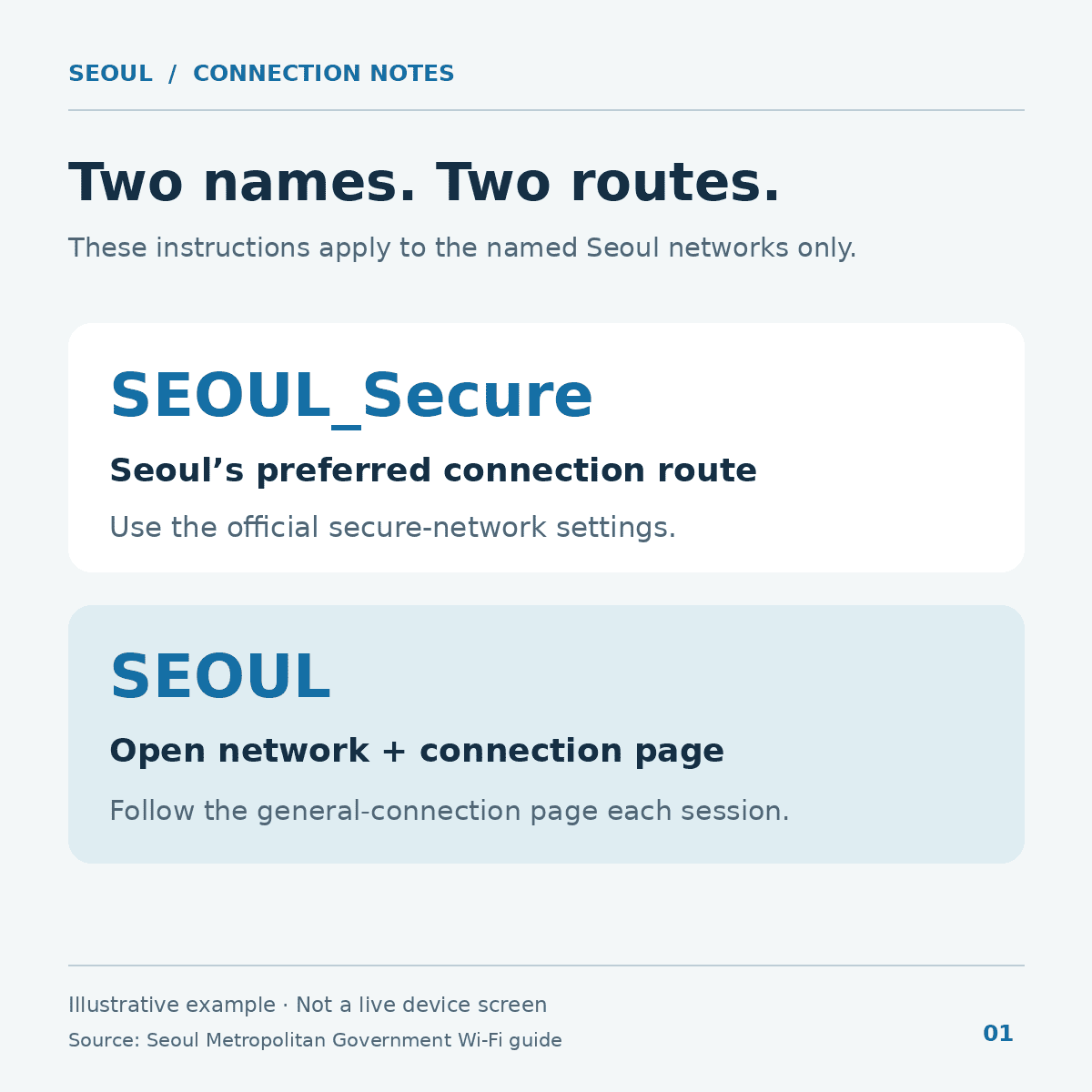
Choose SEOUL_Secure if you can verify that it is the city’s network. If you only see SEOUL, that network uses a connection page instead. The names look alike, but the steps are different.
Picture yourself about to leave a subway station. The Wi-Fi icon is on, but the map you need still isn’t loading. Instead of trying every network on the list, check which of the two you joined and finish the step it requires.
Two names, two ways to connect
| Network | Next step |
|---|---|
| SEOUL_Secure | Use the city’s published sign-in details. |
| SEOUL | Select the general-connection button on the page that opens. |
These steps are for the networks listed in the Seoul Metropolitan Government’s public Wi-Fi guide, updated October 16, 2026. A cafe, hotel or station may offer its own network with different instructions. A matching name by itself is not proof of who operates a hotspot; follow venue signage or ask staff if you are unsure.
Start with SEOUL_Secure
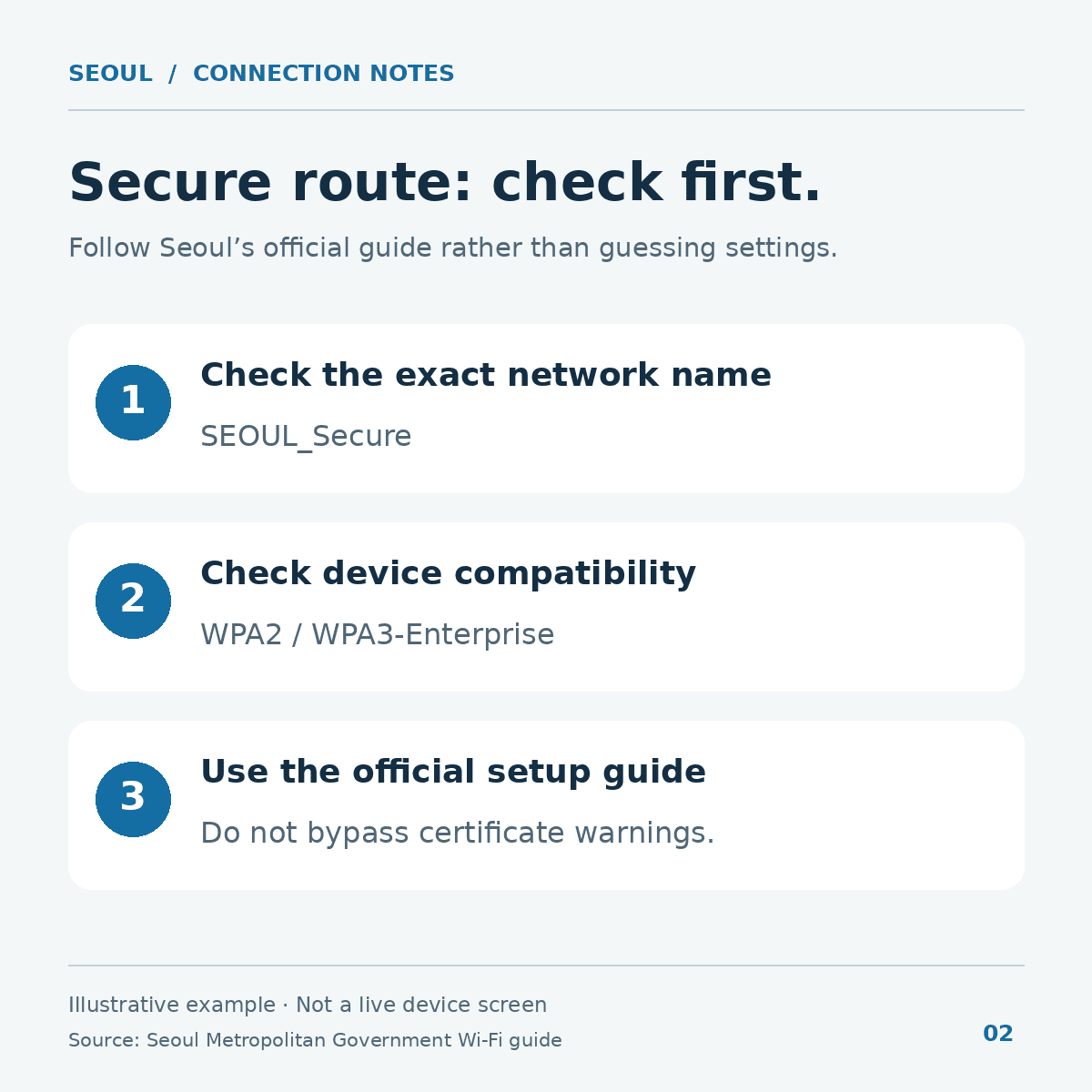
If the city’s secure network is available, Seoul recommends this option. Its guide lists seoul for both fields: the network ID and the network password. This is not your email address or a password from a personal account.
Seoul lists WPA2- and WPA3-Enterprise compatibility, depending on the device. A device may reconnect automatically after its first successful connection when the service is available. That does not mean it will work at every location.
Some phones show settings the city’s quick instructions don’t cover. If a certificate warning or an unfamiliar field leaves you unsure, stop rather than turning off checks or copying settings from an old screenshot.
Using SEOUL instead
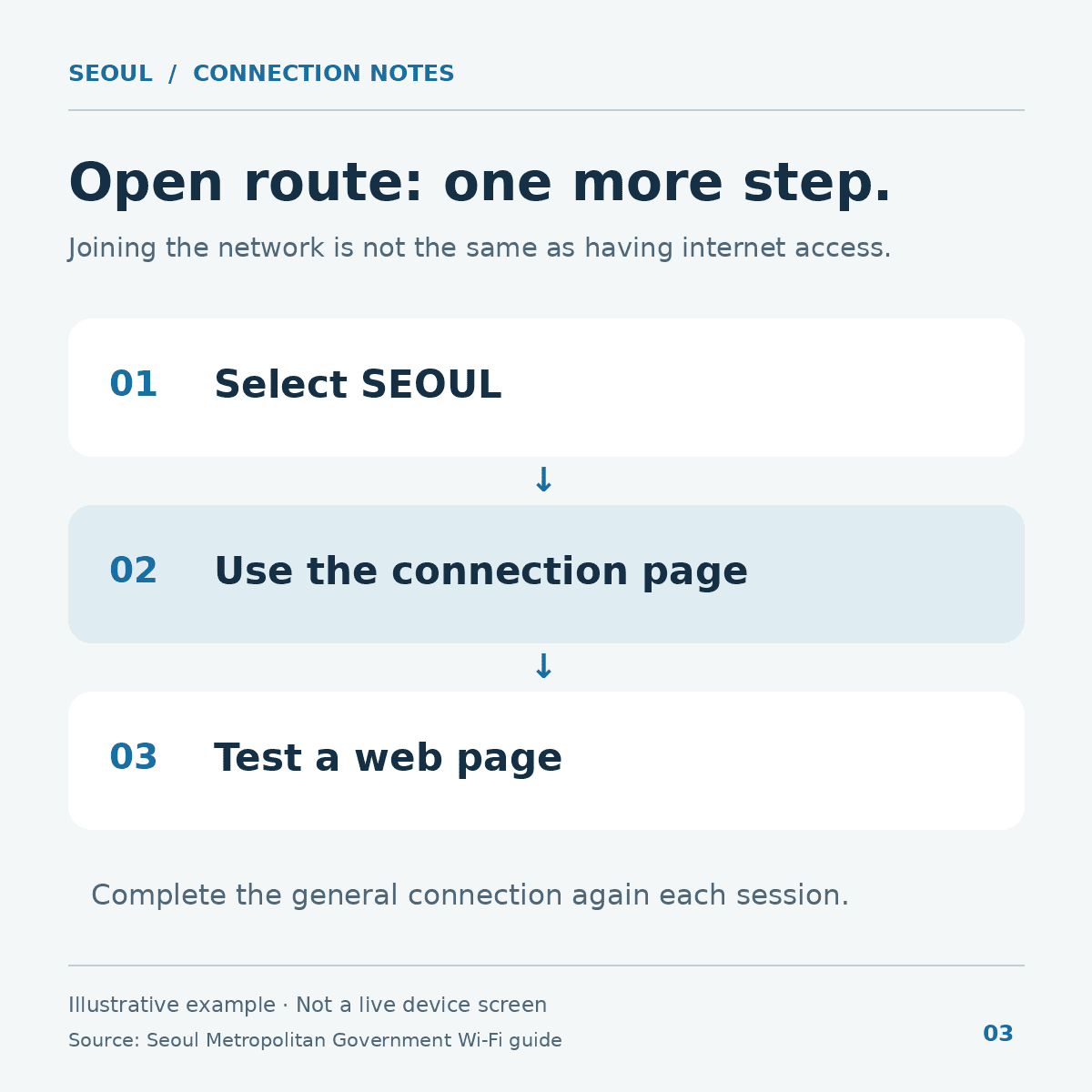
Choose SEOUL, wait for its connection page, then tap 일반 접속. That means general connection. The city’s instructions say to do this each time you connect.
Don’t enter a personal password just because a page appears. The city’s instructions for the general option describe a button, not a request for your email or payment details.
Make sure something new loads
Open a page you actually need, such as your next destination’s official information. Open a fresh page rather than relying on a map or timetable your phone may have saved. A working web page is a better check than the Wi-Fi icon alone.
If the page doesn’t load, go back to Wi-Fi settings and confirm the exact name. For SEOUL, see if the connection page still needs your tap. For SEOUL_Secure, check the city-issued details before trying again. If the screen is unclear or the connection drops, switch to a working mobile connection.
Keep one backup before you walk away
Save your next address while you still have a connection. If you need reliable data between hotspots, see our Korea eSIM guide before relying on public Wi-Fi for the whole trip. Seoul lists 02-2133-0022 for questions about the city service. English-language hours were not verified.
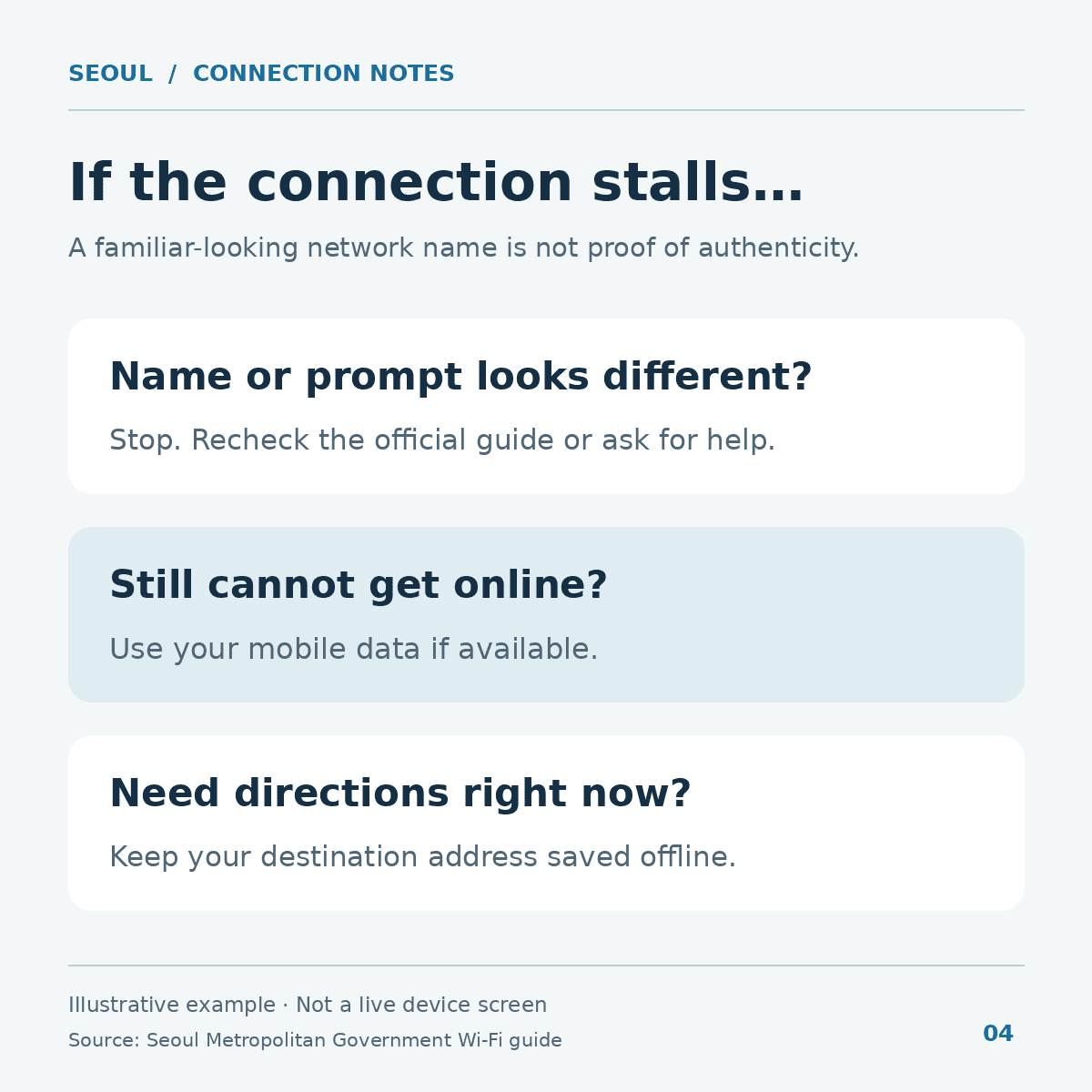
Before you leave, check the one page you’ll need next. The goal is a working connection, not just a Wi-Fi symbol.
Korea Travel Stories Editorial. City connection instructions checked November 14, 2026. This guide is based on the published instructions, not an on-site connection test.